Finishing up
By the end of this page you will be able to close someone's work properly, with the right reason and date recorded.
The pictures in this manual were taken on one organisation's system. Yours uses some different words. The buttons, and where they sit on the screen, are the same.
| Where a picture says | Your screen says |
|---|---|
| Care Journey | Service Episode |
| Entry | Referral |
| Kaiāwhina | Case Worker |
| Whānau | Service User |
Before you close anything
Closing is not the same as pausing. If you expect to pick the work back up — they are in hospital, away, or out of contact for now — use Put on Hold instead.
Close only when the work has genuinely ended.
Whether you can close the work yourself, or only ask a manager to, depends on your position on that particular service. Out of the box only supervisors and managers close directly and everyone else requests approval — but each service can be set up differently, so you may find you can close on one service and have to ask on another.
Beyond that, many organisations expect the work to be taken to a supervisor first as a matter of practice, whatever the system allows. Ask what is expected where you work before closing something for the first time.
Starting the closure
Open the person, find the Service Episode card, and open its actions menu.
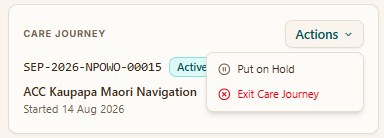
Choose the option that ends the work. It is named after whatever your organisation calls a Service Episode, so it may read Exit, Complete, or something else — but it is the one that is not Put on Hold.
The closure form
On some services, ending the work sends a request to a manager instead of closing it straight away. If that applies to you, this form is headed Request Service Episode Exit, it asks you to pick an approver, and the button reads Submit for Approval. Everything else on this page still applies. See Manager approval for Service Episode exits.
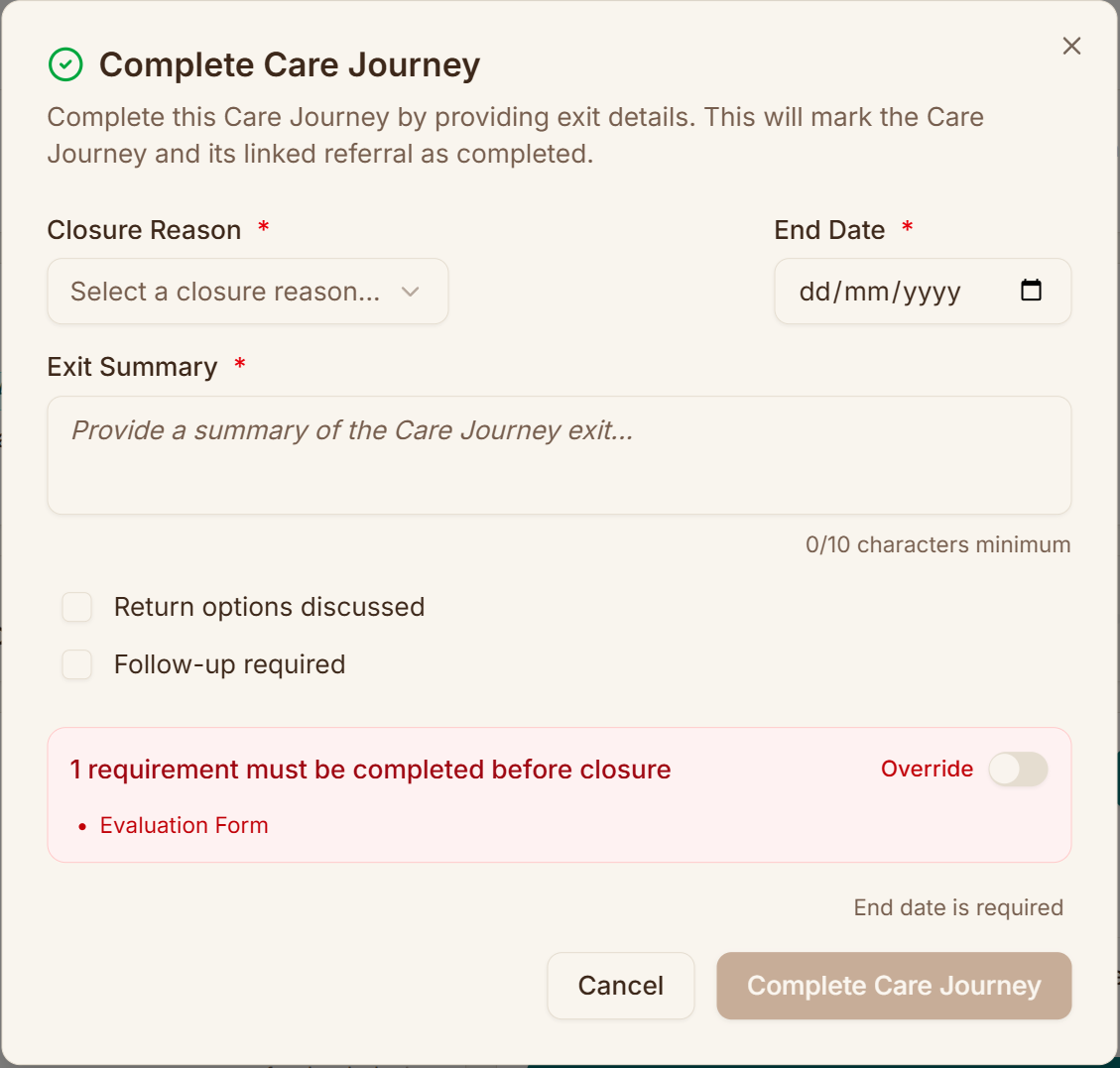
The Closure Reason, End Date, and Exit Summary are all required — the button at the bottom stays greyed out until you have filled them in, and it tells you which one is missing.
Once the work is closed, its status is final. There is no button anywhere in the system to reopen it or change it afterwards.
That is not a reason to avoid closing things — it is a reason to check the reason and the date before you click.
Why it ended
Pick the reason that is actually true.
Only Service completed records the work as genuinely finished. Every other reason — moved out of area, left without notice, consent withdrawn, and the rest — closes it without counting as a completion. Choosing "service completed" for work that stopped because a whānau disengaged makes your organisation's numbers meaningless.
Your organisation sets the list of reasons, so yours may differ from someone else's. If a reason has a small i icon next to it, hover over it to read an explanation of what that reason is for — useful when two of them sound similar.
Exit summary
Right below the closure reason, write a short summary of how the work ended. The form won't let you submit until you've written at least 10 characters, and a counter under the box shows how you're doing. This replaces the old Exit Summary Document upload; you no longer attach a separate file for it.
When it ended
Put the real end date. If your last contact was three weeks ago, use that date.
It cannot be in the future.
Anything still outstanding
If required paperwork is missing, the dialog says so in red and names each item — "2 requirements must be completed before closure", then the list: closure checklist, evaluation form.
Going ahead anyway means turning on Override and writing a justification before the closure button becomes available.
Sometimes closing with paperwork missing is the right call — a whānau who has moved on is not coming back to sign an evaluation form.
But what you type is kept, and someone will read it. Write the actual reason, not "n/a".
If you are ticking "consent withdrawn"
Consent is withdrawn at the Referral level, not just for this piece of work. If the person has other open Service Episodes under the same Referral, those are closed too.
The dialog will ask you for a reason and a confirmation that the person actually requested it. Both are required, and the button changes to Complete & Withdraw Consent so you know it is happening.
If you did not intend to end their other services, stop and choose a different reason.
Follow-up
If you tick Follow-up required, you must give a follow-up date. It can be up to six months out.
What closing does
- The Service Episode is marked Completed or Closed, with your end date and reason recorded on it.
- The linked Referral is set to match.
- An "Exit Episode" activity is written automatically, holding the reason and your exit summary. In that activity the summary appears under the heading Closure Notes, which is what the field used to be called.
- The record moves off your in-progress list and onto Completed Care.
Everything recorded stays. You can still open it and read the history — you just cannot change it.
If it does not look like this
- There is no exit option — either the work has already been closed, or you have an exit request waiting on a manager. The option disappears in both cases. Check the status on the Service Episode card: Awaiting Exit Review means it's with your approver.
- It will not let you pick an end date before the start date — that is deliberate. If the start date is wrong, fix that first.
- The closure documents are still locked — they unlock once closure has begun. Start the closure, then upload them.
- You closed it by mistake — it cannot be reopened. Tell your supervisor straight away rather than quietly creating a duplicate record; how to handle it is their call.
What next
There is more detail on what closure means for reporting on the closing an episode reference page.