Working with someone
By the end of this page you will be able to read someone's overview page, change who is working with them, and fill in what the service needs to know.
The pictures in this manual were taken on one organisation's system. Yours uses some different words. The buttons, and where they sit on the screen, are the same.
| Where a picture says | Your screen says |
|---|---|
| Care Journey | Service Episode |
| Entry | Referral |
| Kaiāwhina | Case Worker |
| Whānau | Service User |
The overview page
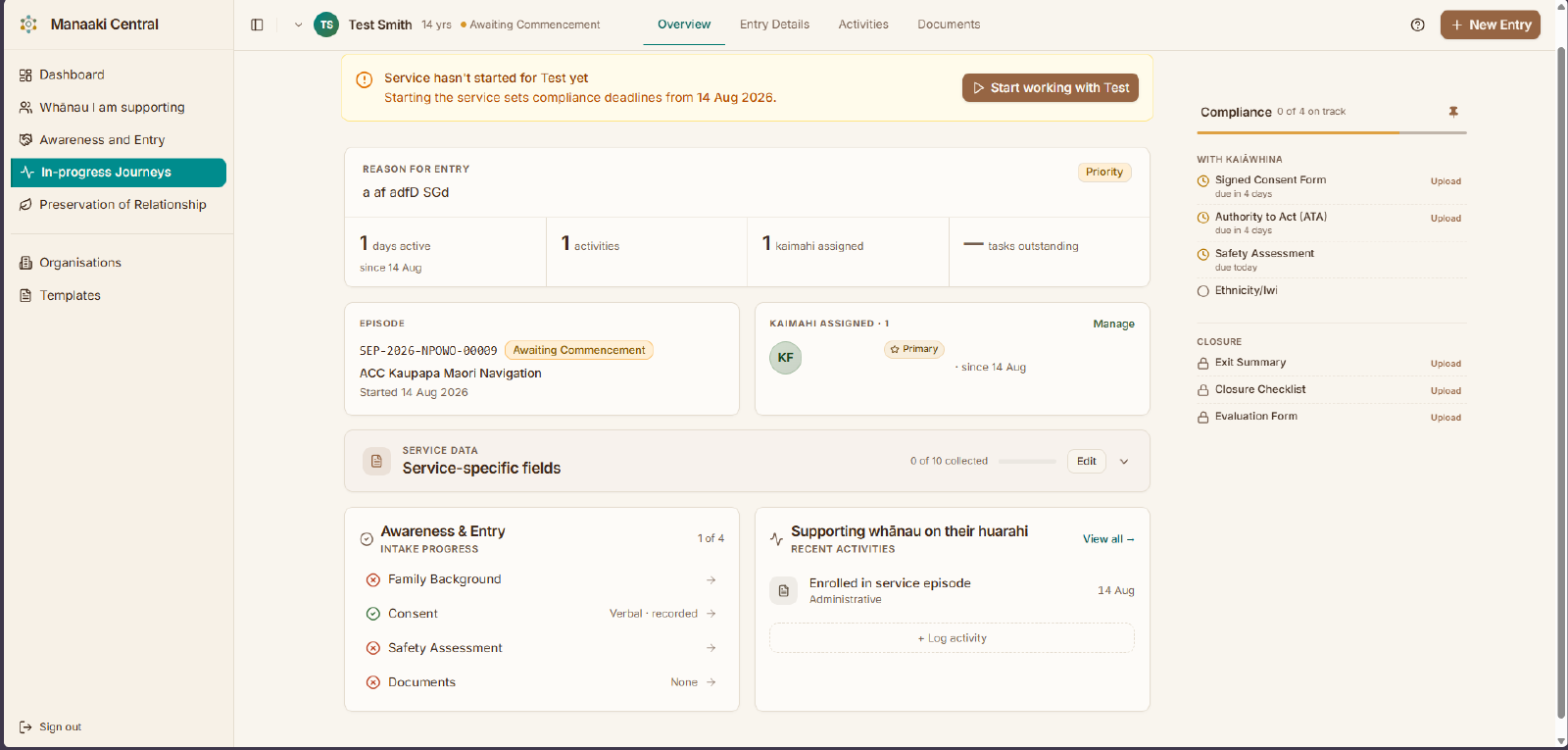
Open anyone from your list and this is the first thing you see. It is the single most useful screen in the system — everything else is a detail of it.
Here is the same page with each part numbered.
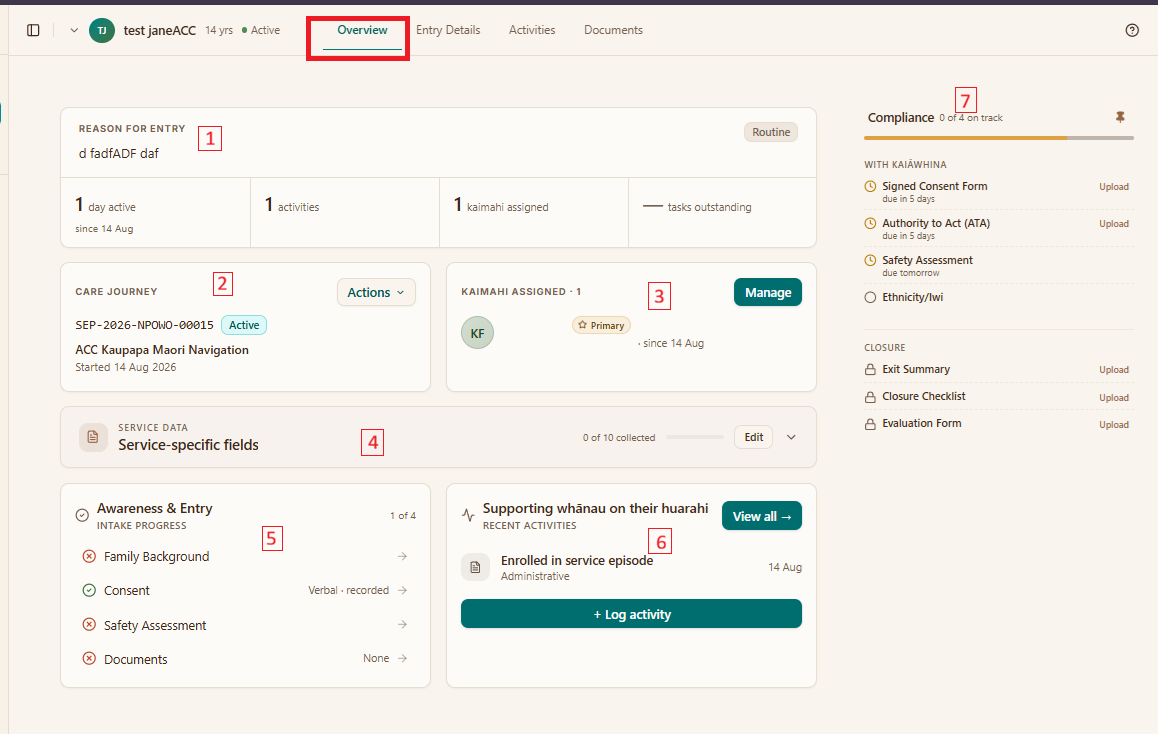
- Reason for entry — why they came to you, in the words of whoever took the enquiry. Underneath it is a row of counts: days active, activities logged, staff assigned, and tasks outstanding.
- Service Episode — the reference number, the service, and when it started. The Actions button here is how you pause or end the work.
- Staff assigned — who is walking alongside them. Manage is how you change it.
- Service data — the extra questions this particular service asks. The counter beside it says how many have been answered so far.
- Intake progress — what is still missing from when they came in. Each line takes you to the part that needs filling.
- Recent activities — the last few things anyone did, and the button for adding another.
- Compliance — the paperwork with deadlines. It has its own page.
If the work has not started yet, a banner sits across the top of this page and that is where you start it. Once it has started the banner is gone, which is why it does not appear above.
Who else is working with them
The staff card lists everyone assigned. One of them is marked Primary — that is who the work belongs to; anyone else is supporting.
Changing that list is usually a supervisor's job, and the Manage button only appears if you have permission for it. If you need somebody added or handed over, ask your supervisor — the steps are on moving work between staff.
What the service needs to know
Each service asks its own extra questions. They sit in the Service data card, and they are usually the last thing anyone fills in.
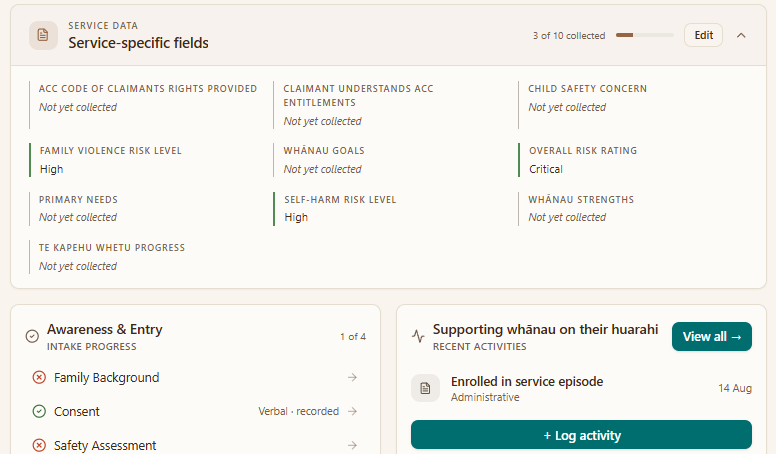
Click Edit to fill them in. They save as you go.
Pausing the work
If someone is temporarily out of contact — in hospital, away, or you simply cannot reach them — you can put the work on hold rather than closing it.
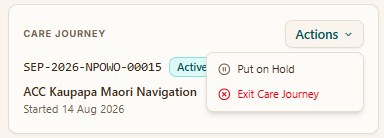
Use Put on Hold when you expect to pick the work back up. It can be undone — a Resume option brings the work back to active.
Use the option that ends the work — Exit or Close Episode, depending on your organisation's wording — only when it has genuinely finished. That one cannot be undone. See finishing up.
If it does not look like this
- There is no Manage button — changing who is assigned needs permission you probably do not have. That is normal. Ask a supervisor.
- The service data card is not there — that service has no extra questions.
- The banner still says the service has not started — nobody has clicked Start working with... yet. Until they do, the deadline clock is not running.