Writing up what you did
By the end of this page you will be able to record a visit, a phone call or anything else you did, and use a template so you are not starting from a blank box.
This is the thing you will do most often. It is worth ten minutes now to get comfortable with it.
The pictures in this manual were taken on one organisation's system. Yours uses some different words. The buttons, and where they sit on the screen, are the same.
| Where a picture says | Your screen says |
|---|---|
| Care Journey | Service Episode |
| Entry | Referral |
| Kaiāwhina | Case Worker |
| Whānau | Service User |
Where the write-ups live
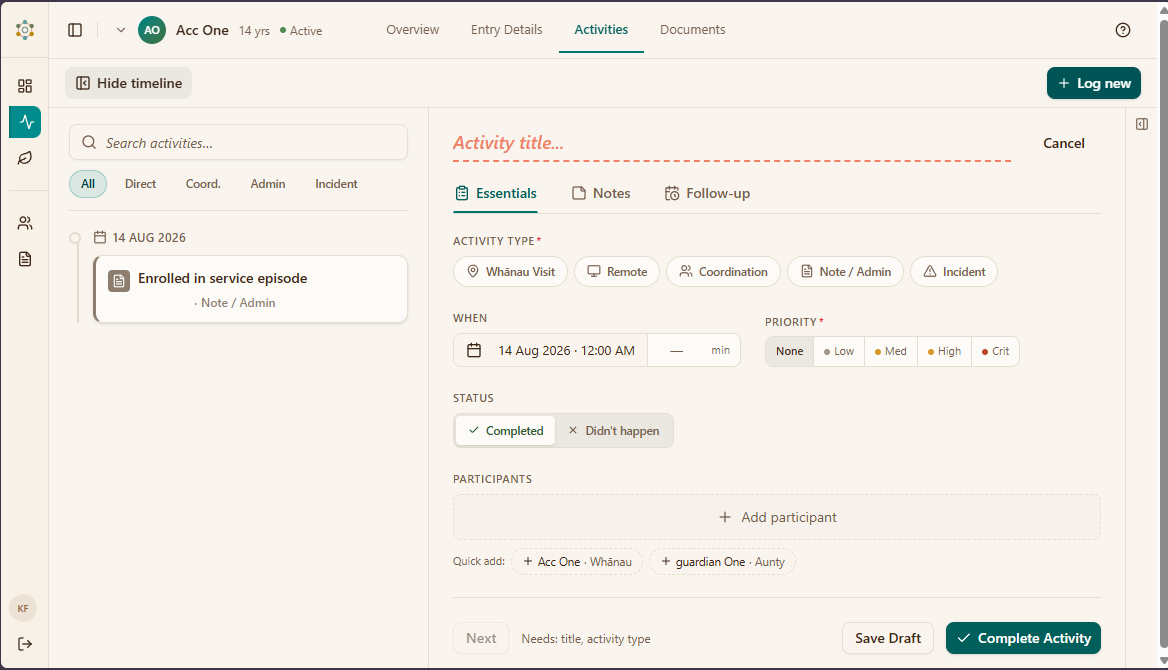
Open the person, then click the Activities tab.
Recording something
Click + Log activity — or use the form already open on the Activities tab.
The essentials
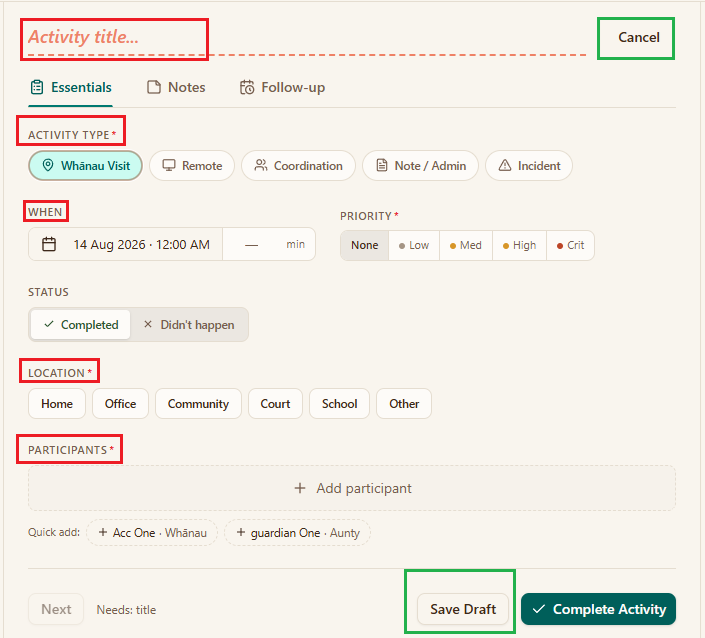
Work down the form:
- What kind of activity it was — a visit, a phone call, coordination with another agency, and so on.
- The date and time it happened. Not today's date, unless it was today. The form starts you at the current date and time, so if you're writing this up straight afterwards there's nothing to change — but if you're catching up on something from Tuesday, set it back.
- How long it took. This matters for funding reports, so a rough honest figure beats leaving it blank.
- Who was there — pick from the people already linked to this person.
- Where it happened.
Was it in person or not?
If you choose Remote, an extra row appears asking how you made contact.
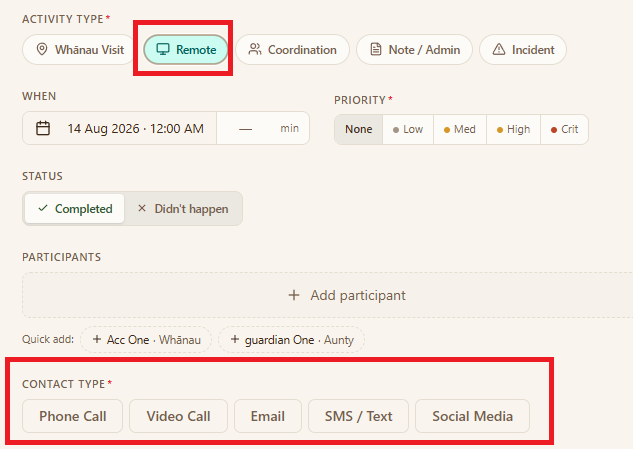
A phone call is not a visit, and recording it as one distorts the picture of what a whānau has actually received. It also puts your organisation's reporting wrong.
The notes
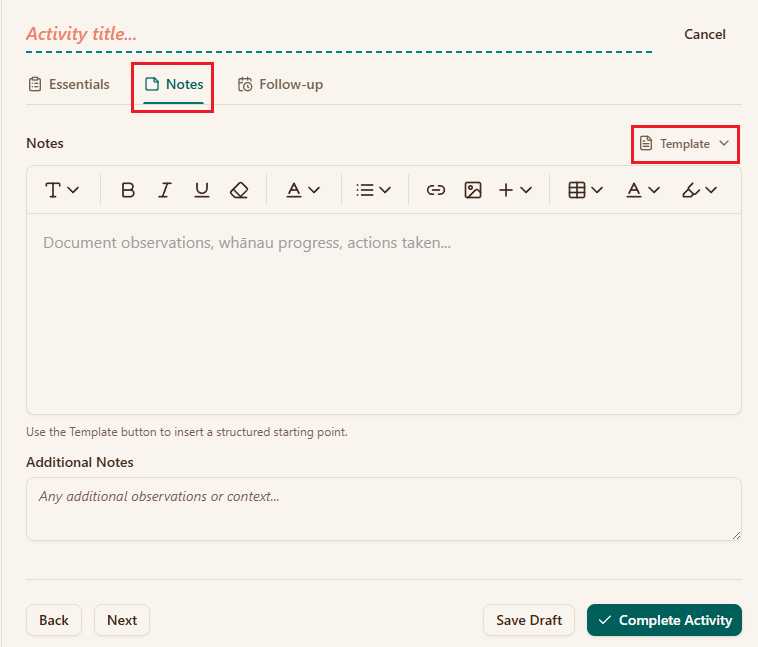
Click the Notes tab of the form and write what happened.
Using a template
If you keep writing the same shape of note, use a template instead of starting from nothing.
Click Template and choose one.
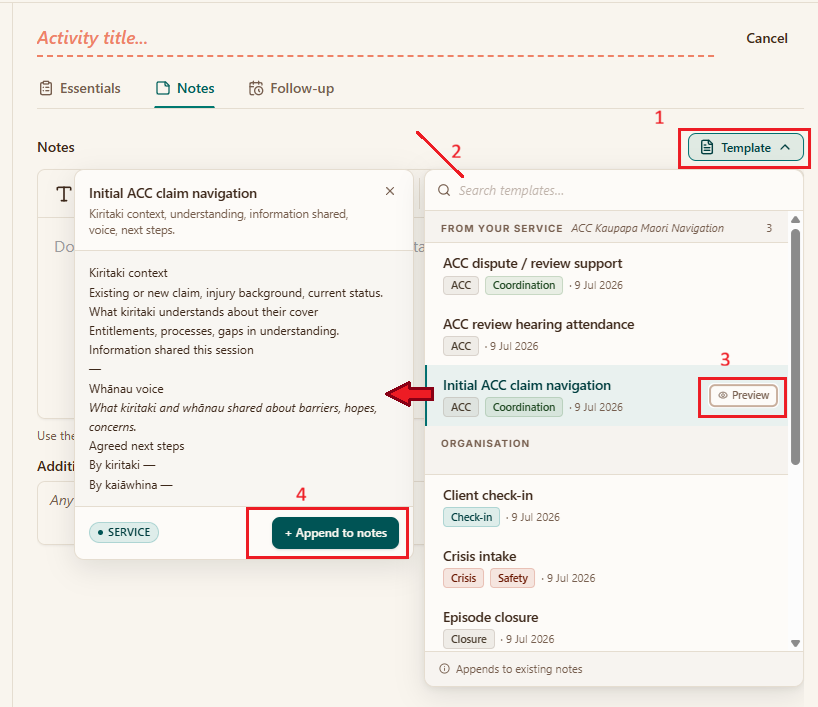
- Template — opens the list.
- The list — templates set up for this service come first, then your organisation's. Search if there are a lot of them.
- Preview — shows what that template will put in, before you commit to it.
- Append to notes — drops the headings into your notes. You fill in the rest underneath.
It adds to whatever you have already written rather than replacing it, so you can pick a template after you have started.
A template only puts headings and prompts into the box. Everything you type afterwards is yours, and you can delete any part of it.
The list you see was set up by your organisation for your services. If a template you need is missing, or one is worded badly, that is something your manager can change — it is not fixed in the software.
Drafts
An activity can be saved as a Draft if you are not finished.
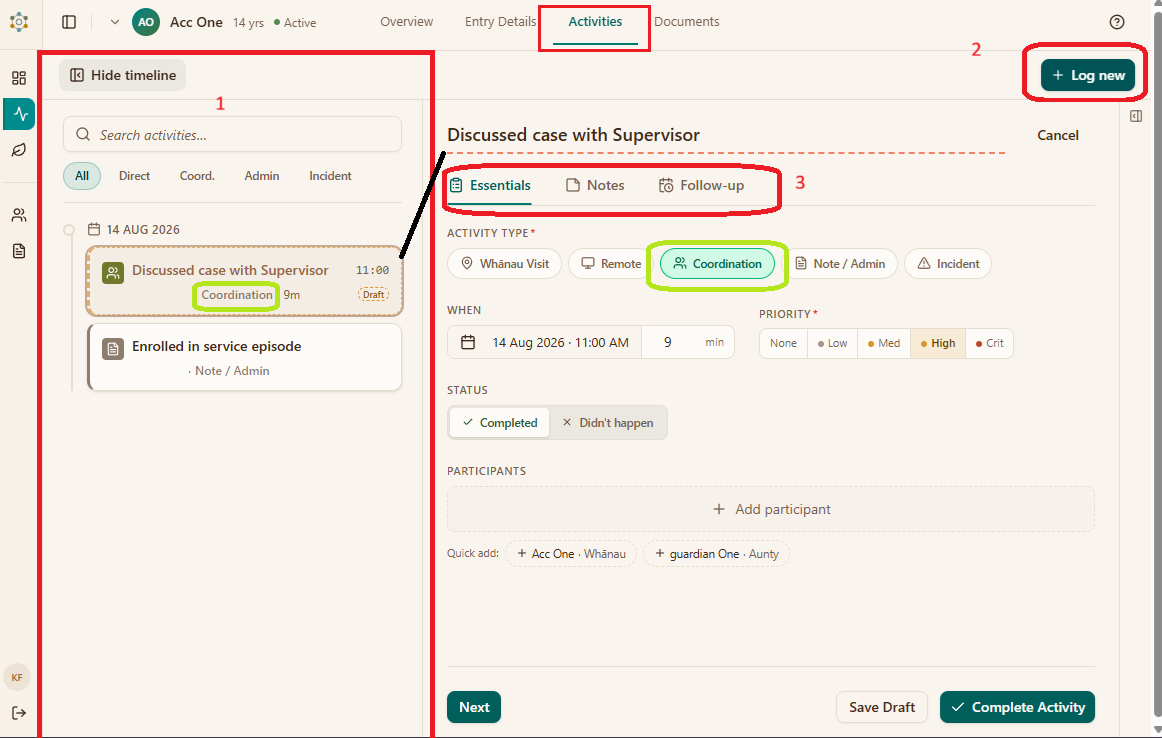
- The timeline — everything recorded about this person, newest first. The buttons above it narrow the list to one kind, and anything unfinished is marked Draft.
- Log new — starts another one.
- The three tabs — Essentials is what happened, Notes is what you write, Follow-up is what happens next. Save Draft at the bottom keeps it without finishing; Complete Activity files it.
Drafts are useful when you are writing up in the car and want to check something before you commit. Do not let them pile up — an unfinished note is not a record.
If it does not look like this
- You cannot find the Activities tab — you may be on the dashboard rather than inside a person's record. Open them first.
- The people list is empty when you try to say who was there — nobody has been added to their support network yet. See taking on someone new.
- There are no templates — your organisation has not set any up for this service.
- You cannot change something you wrote earlier — only the person who wrote an activity can edit it, and only for 10 days afterwards. After that the Edit option no longer appears. Nobody else can change it for you, not even your supervisor. If it needs correcting, record a new activity saying so rather than trying to alter the old one.
What next
- Staying on top of deadlines
- The full activities reference has more detail on every field