Closing a Service Episode
Ending a Service Episode — whether service was completed successfully or ended for another reason — starts from the Actions menu on the episode's Overview tab: choose Exit Service Episode.
Each service lists the positions allowed to close directly — by default supervisors and managers. If yours isn't on that list, exiting submits a request for a manager to approve instead of closing the Service Episode immediately, the dialog is titled Request Service Episode Exit, and you'll also pick an approver. The fields below are the same either way. See Manager approval for Service Episode exits.
Once an episode is Completed or Closed, its status is final — there's no action in the app to reopen it or change it further.
Completion vs closure
The dialog uses a single Closure Reason field, but the reason you pick decides whether the episode ends as Completed or Closed:
| Closure Reason | Resulting status |
|---|---|
| Service completed | Completed |
| Anything else — released from prison, transferred to another service, moved out of area, left against advice, left without notice, left involuntarily, imprisoned, sanctioned by drug court, consent withdrawn, died, other, not stated | Closed |
Only "Service completed" counts as a true completion; every other reason closes the episode without it. Your organisation's administrator configures the exact list of reasons available, so yours may differ slightly from the list above.
Where a reason has an explanation attached to it, a small i icon sits beside its name in the dropdown — hover or focus it to read what that reason means. Not every reason has one; that's up to how your organisation has set them up.
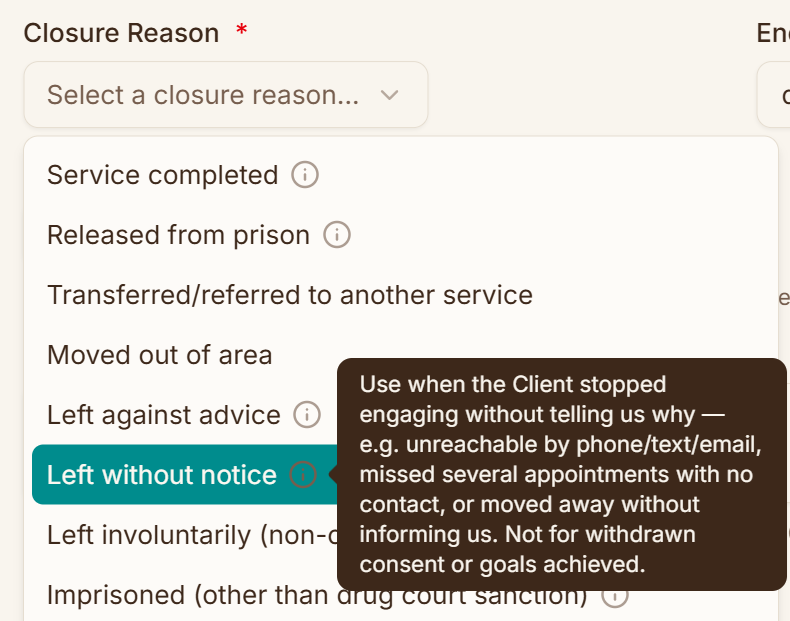
These explanations are worth reading when two reasons sound similar. Picking the right one is what keeps your organisation's closure figures meaningful.
What you provide
| Field | Required | Notes |
|---|---|---|
| Closure Reason | Yes | Selects Completed vs Closed as above |
| Exit Summary | Yes | Free text. The form won't let you submit until you've written at least 10 characters. Replaces the old Exit Summary Document upload. |
| End Date | Yes | Cannot be after today |
| Please specify | Only if reason is "Other" | Free text |
| Follow-up required | No | If ticked, a Follow-up date is required (up to six months out) |
If any compliance requirements for the episode are still outstanding, they're listed as blockers and you'll need to enter a justification before the button at the bottom becomes available.
Withdrawing consent as part of closure
If you select Consent Withdrawn as the closure reason, the dialog adds a dedicated section: a reason for the withdrawal, and a checkbox confirming the client has requested it. Both are required before you can proceed, and the button changes to Complete & Withdraw Consent.
Consent is withdrawn at the Referral level, not just this episode. If the client has other open Service Episodes under the same Referral, those are closed too — not just the one you're closing here.
What happens automatically
Completing this dialog:
- Sets the episode's status to Completed or Closed, and records the end date and closure reason on it
- Sets the linked Referral's status to match (Completed or Closed)
- Creates an "Exit Episode" activity recording the reason and what you wrote in the Exit Summary, visible on the episode's Activities tab. In that activity the summary is labelled Closure Notes, which is the field's older name
After closing
Closed and completed episodes move off the Active Care page and onto Completed Care, where you can still open them to review their history — you just can't change them further.