Moving work between staff
By the end of this page you will be able to add someone to a piece of work, hand it over properly, and understand what Primary means.
The pictures in this manual were taken on one organisation's system. Yours uses some different words. The buttons, and where they sit on the screen, are the same.
| Where a picture says | Your screen says |
|---|---|
| Care Journey | Service Episode |
| Entry | Referral |
| Kaiāwhina | Case Worker |
| Whānau | Service User |
Who this page is for
Changing who is assigned needs permission that a Case Worker does not have. If you are a supervisor or a programme manager you will see a Manage button on the staff card; if you cannot see it, this is not your job and you should not need this page.
Opening the list
Open the person's record and click Manage on the staff card.
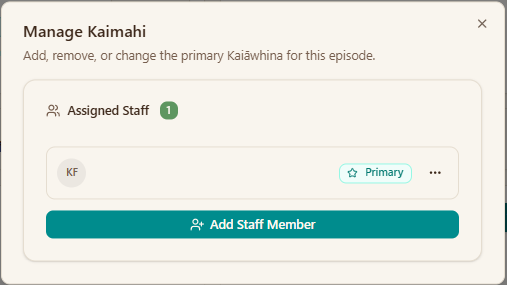
Primary is the important word. More than one person can be assigned, but exactly one is Primary, and that is who the work is understood to belong to.
Adding somebody
Click Add Staff Member and pick them from the list.
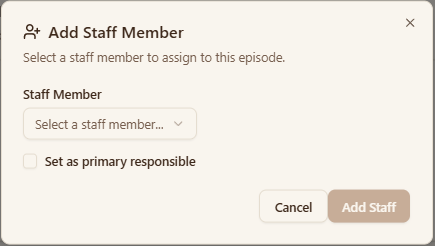
Adding a second person does not remove the first. Both are now assigned, and whoever was Primary still is.
If you are handing work over rather than sharing it, do all three steps: add the new person, make them Primary, then remove the previous one. Stopping after the first step leaves two people each assuming the other has it.
Handing work over
The order matters, because the system will not leave a piece of work with nobody on it:
- Add the person taking it on.
- Make them Primary.
- Remove the person handing it over.
Doing it the other way round — removing first — will not work. The last remaining staff member cannot be removed, and the person marked Primary cannot be removed directly; make somebody else Primary first.
Reassigning changes what appears on someone's dashboard, but it does not tell them why. A handover still needs the conversation about where the work has got to.
If it does not look like this
- There is no Manage button — you do not have permission to change staff on this service. That is a question for your administrator, not a fault.
- The person you want is not in the list — they may not be set up for this service. Your administrator can check their positions.
- You cannot remove somebody — they are either the only person assigned, or they are Primary. Assign someone else, or move Primary first.
What next
- What you can do — the rest of what the supervisor role covers.
- Managing service episodes — the reference page, including the exact rules on staff changes.