Resolving a follow-up
1 September 2026
On the dashboard's Activities Needing Follow-up table, you can now resolve a follow-up directly from the row — recording what happened without opening a new Activity.
Resolving from the dashboard
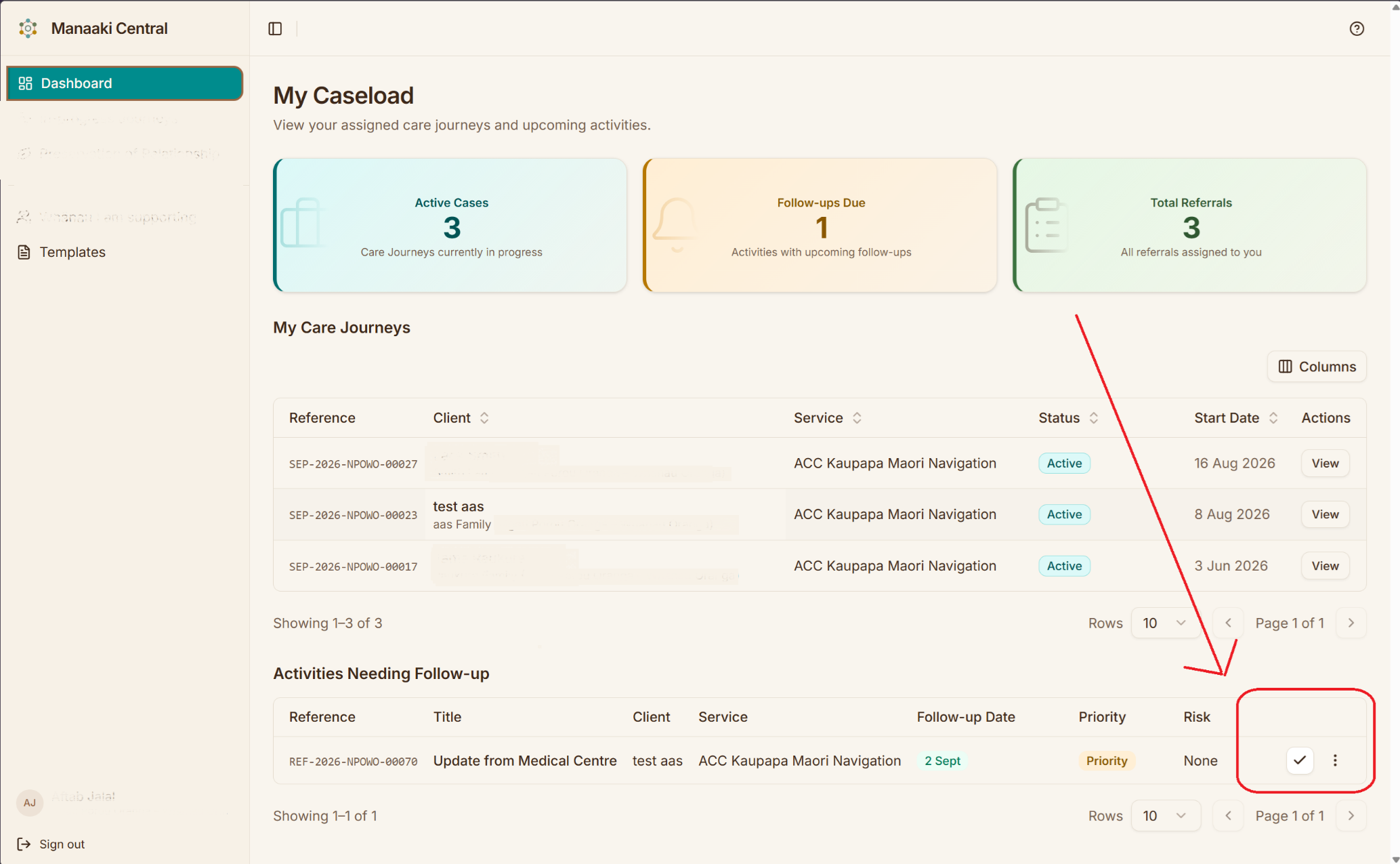
Selecting the tick opens a panel asking for the title of the completion Activity, prefilled for you:
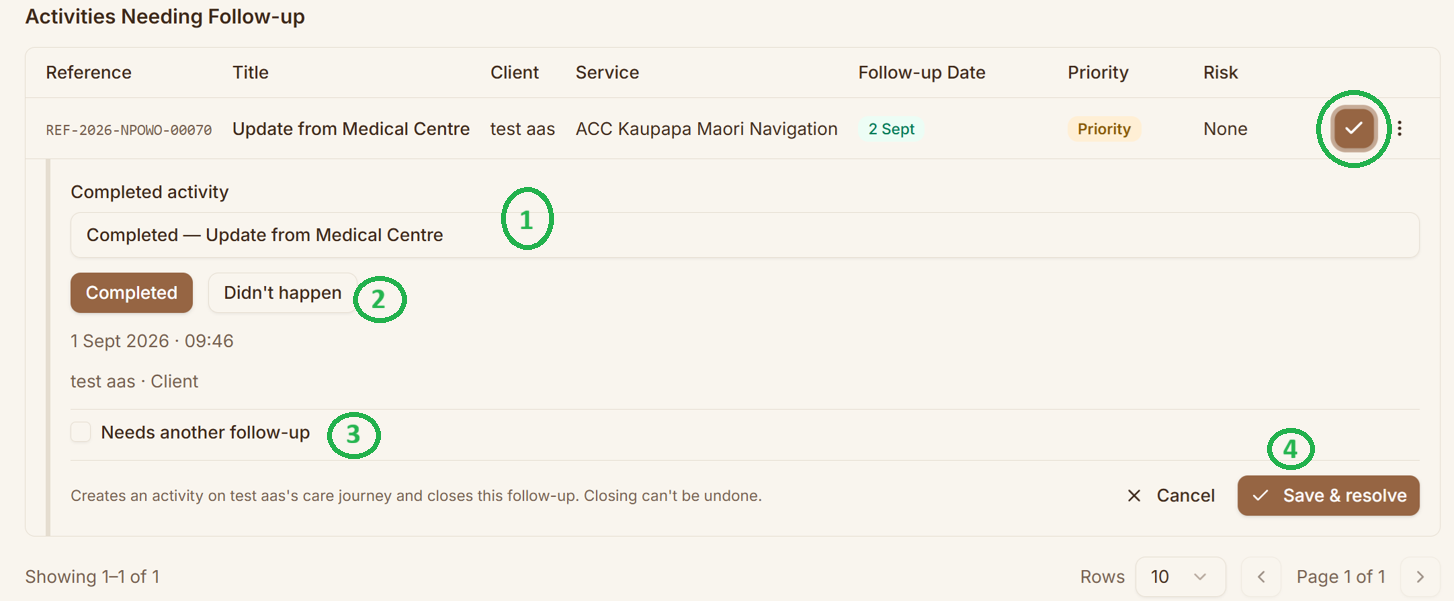
Resolving or closing a follow-up uses the details in the resolution panel to create an Activity, which you'll see on the Service Episode's Care Journey timeline.
The title is prefilled with a prefix of Completed or Didn't happen, and you can edit it before saving. In Manaaki Central, a Completed follow-up is like saying "resolved", whereas Didn't happen means "closed".
Didn't happen, and rescheduling
Choosing Didn't happen asks why it didn't happen, and lets you set a new follow-up date in the same step:
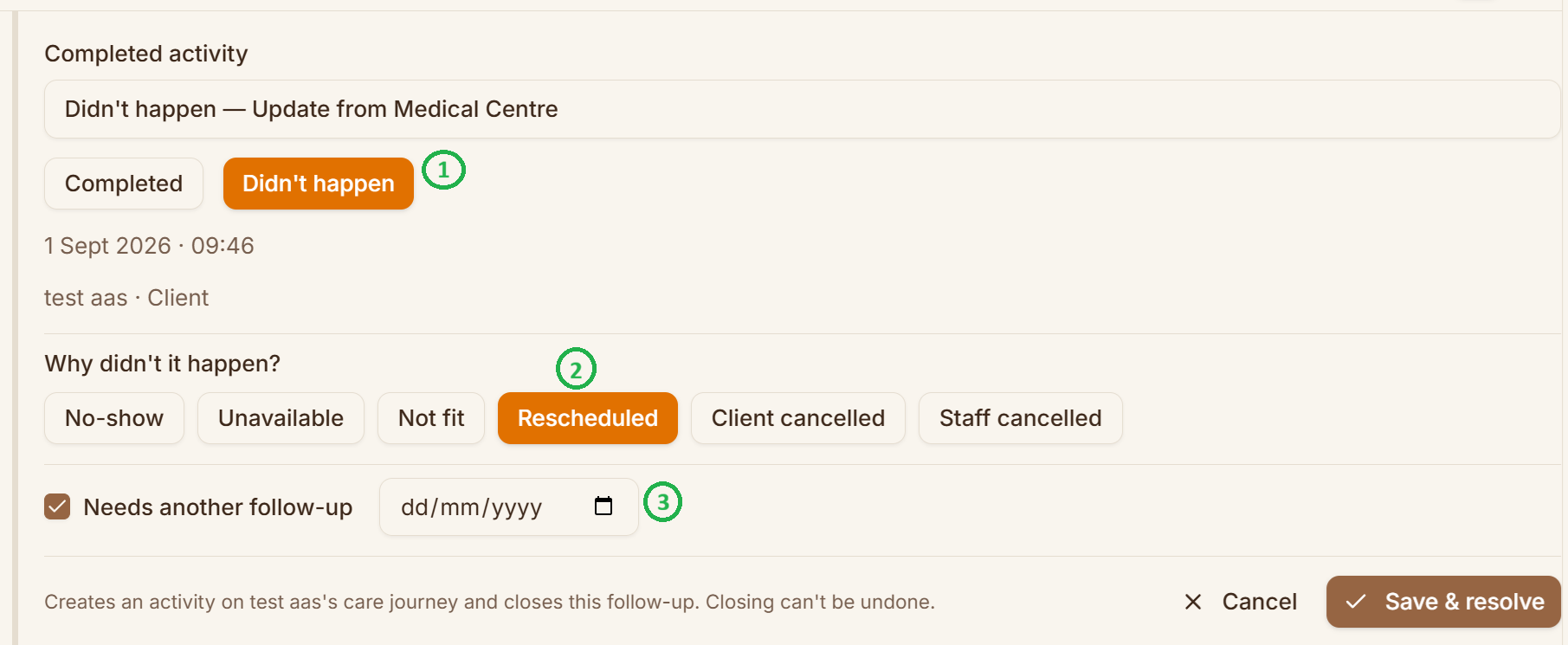
Check Needs another follow-up and set a date to create the next one at the same time — this is how you reschedule.
Here's what that looks like afterwards, from the Activity timeline — a follow-up closed as Didn't happen, with Not fit as the reason and no further follow-up:
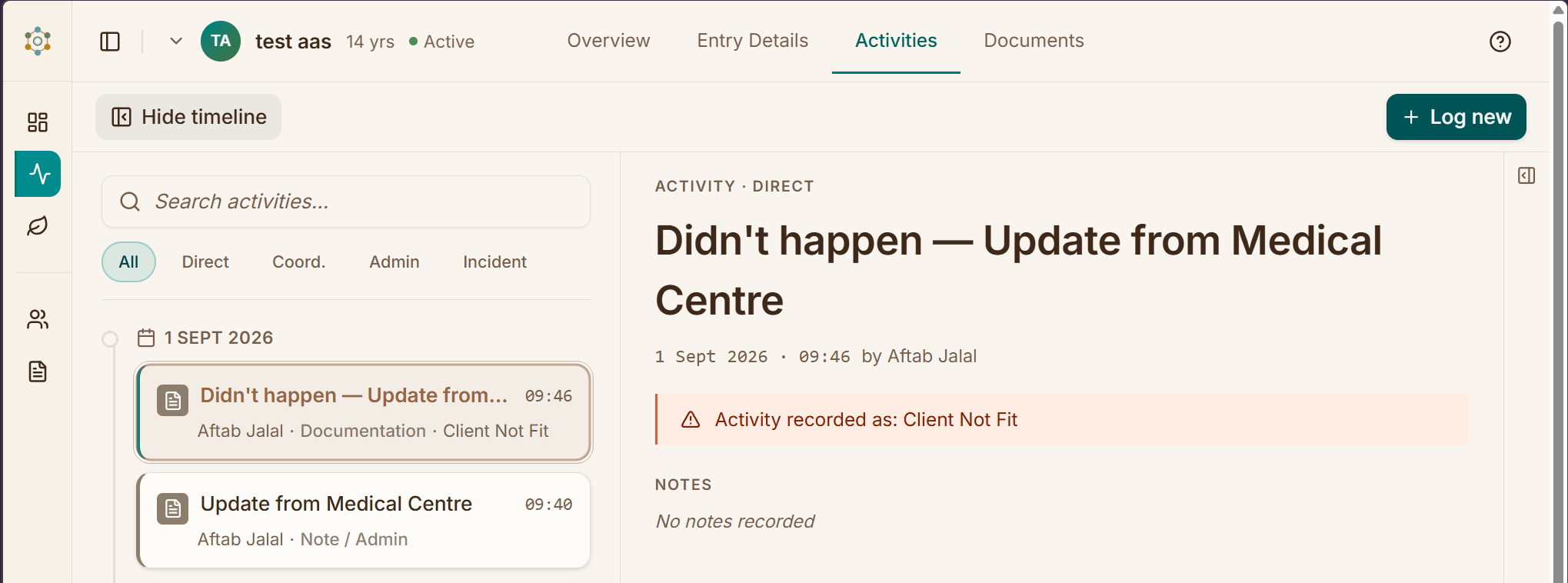
Completed and Didn't happen should cover most of what you need — even something like "follow-up created by accident" is worth documenting this way.
Clearing a follow-up with nothing left to add
Sometimes the case notes have moved on far enough that there's no useful follow-up detail left to record. For those, clear the follow-up instead: open the 3-dot menu on the row and choose No longer needed.

A confirmation lets you back out before it's cleared:
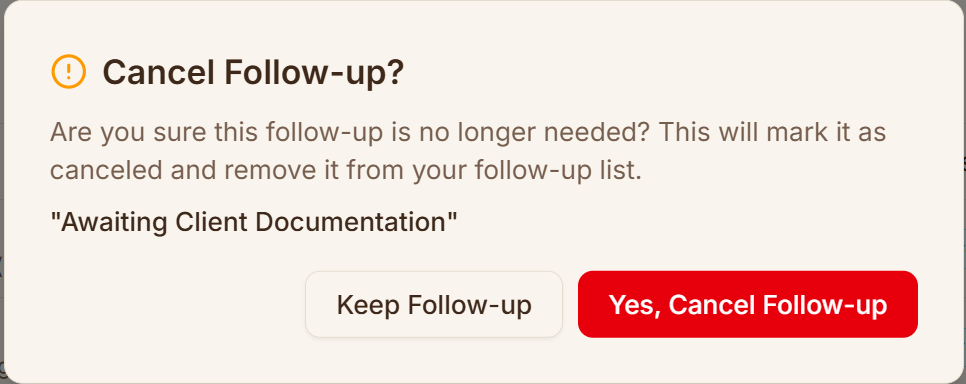
Unlike Completed or Didn't happen, this does not create an Activity — it just removes the follow-up.
Logging a full activity instead
The Log activity option, just above No longer needed in the same menu, closes the follow-up too — but by capturing the full set of details you'd normally use when creating an Activity: the familiar Essentials, Notes, and Follow-up tabs.