Supervisor / Program Manager Dashboard
The Supervisor Dashboard is your central hub for managing Referral requests, monitoring team Activity, and ensuring timely service delivery. Both Supervisors and Program Managers share the same dashboard experience.
Overview
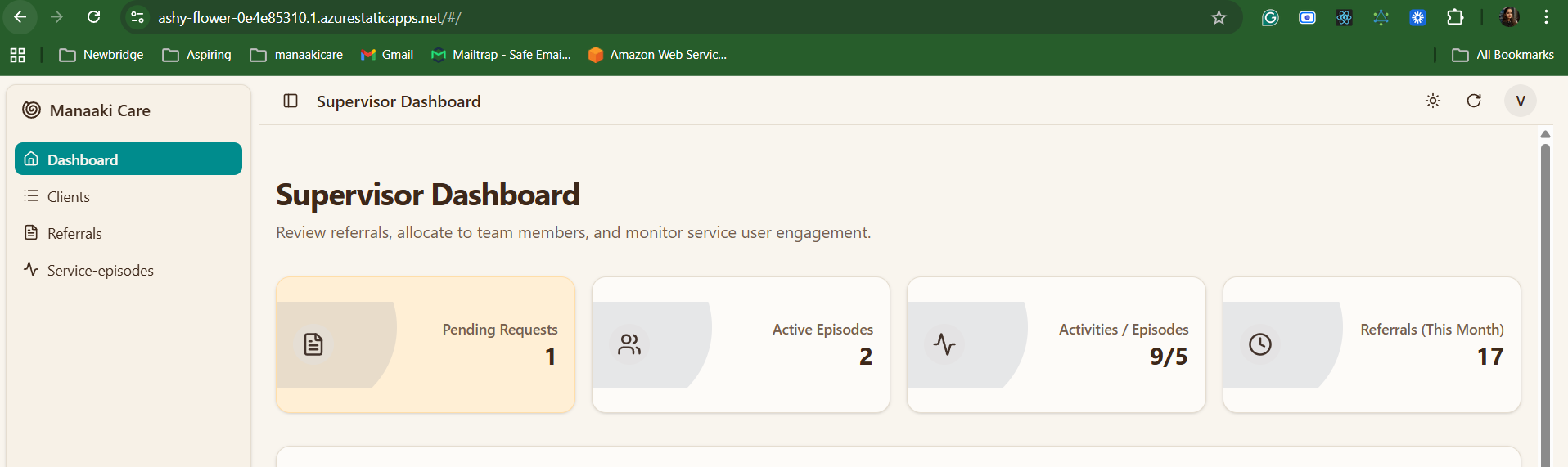
The Supervisor Dashboard displays:
- Real-time analytics showing pending requests, active episodes, and Referral volumes
- Pending Referrals Requests queue for accepting or rejecting incoming Referrals
- Service Users Needing Contact to flag clients not contacted recently
- Pending Service Dispatch for Referrals awaiting service assignment
The dashboard description reads: "Review Referrals, allocate to team members, and monitor Service User engagement."
Analytics Section
The top section displays four key metric cards that give you an at-a-glance view of your workload.
Statistics Cards
| Card | Icon | Description | What It Shows |
|---|---|---|---|
| Pending Requests | Document | Referral requests awaiting your action | Count of incoming requests needing accept/reject |
| Active Service Episodes | People | Active Service Episodes under your oversight | Total active service delivery episodes |
| Activities / Service Episodes | Activity | Activity engagement ratio | Format: "X/Y" (total Activities / unique episodes with Activities) |
| Referrals (This Month) | Clock | Referrals created in the current month | Monthly Referral volume |
Understanding the Cards
- Orange highlight on "Pending Requests" indicates items requiring your immediate attention
- The Activities / Service Episodes ratio helps you gauge team engagement - a higher ratio means more Activities per episode
- Numbers update in real-time as your team processes Referrals and records Activities
Pending Referrals Requests
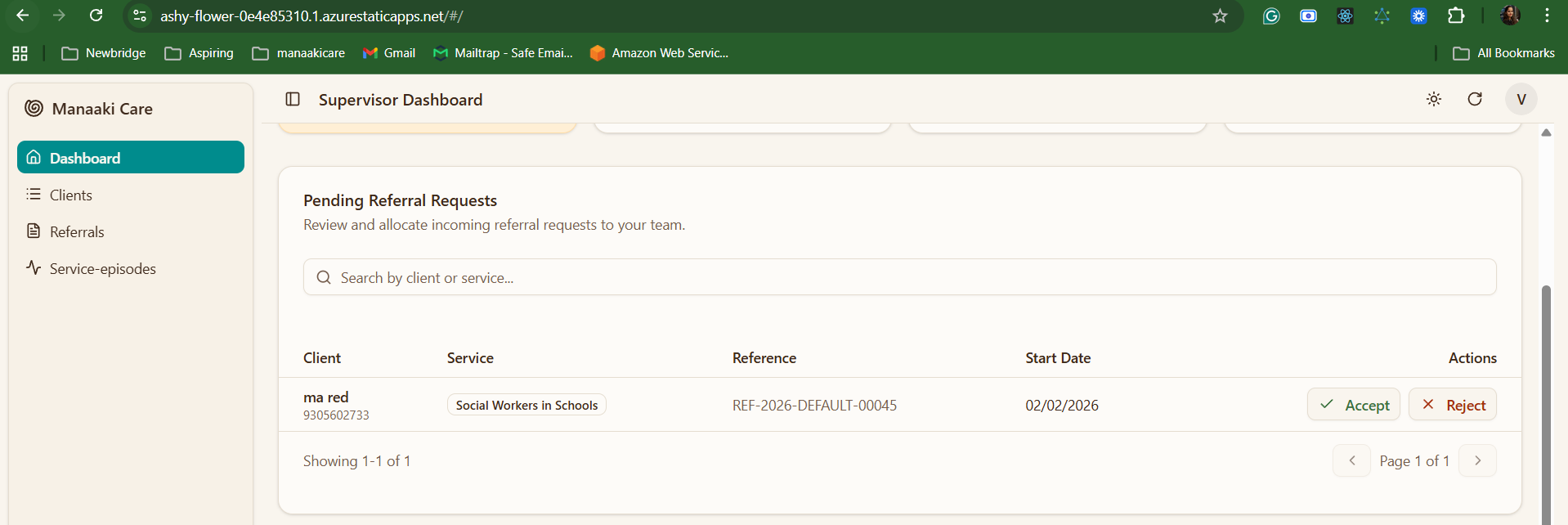
This full-width section displays all incoming Referral requests that require your review. These are Referrals that have been dispatched to a service you supervise and need to be accepted or rejected.
Section description: "Review and allocate incoming Referral requests to your team."
Table Columns
| Column | Description |
|---|---|
| Client | Client name and phone number |
| Service | The service being requested (displayed as a badge) |
| Reference | Referral reference number (e.g., REF-2026-DEFAULT-00045) |
| Start Date | Requested service start date |
| Actions | Accept and Reject buttons |
Accepting a Referral
When you click Accept, a dialog appears with the following options:
| Field | Required | Description |
|---|---|---|
| Allocate to Team Member | Optional | Dropdown to assign the Referral to a specific staff member from your team |
| Notes for Team Member | Optional | Free-text instructions or context for the allocated worker |
After accepting:
- The Referral service request status changes to Accepted
- A Service Episode is automatically created for the client under the requested service
- If a team member is selected in the "Allocate to Team Member" dropdown:
- The selected Case Worker is assigned to the service episode as staff
- A "Referral and Service Enrolment" Activity is automatically created within the episode, containing the Referral summary, service details, and staff assignment
- The Case Worker will see this episode appear on their Case Worker Dashboard under My Active Cases
- Notes provided in the "Notes for Team Member" field are included in the enrolment Activity for the Case Worker's reference
- The Referral progresses forward in the workflow
Every accepted Referral request creates a Service Episode. Selecting a team member ensures the Case Worker is immediately assigned and can begin service delivery. If no team member is selected, the episode is created but will need staff assignment later.
Rejecting a Referral
When you click Reject, a dialog requires:
| Field | Required | Description |
|---|---|---|
| Reason for Rejection | Yes | You must provide an explanation for the rejection |
After rejecting:
- The Referral service request status changes to Rejected with the reason recorded
- The Referral status reverts to Pending Service Dispatch
- The Referral reappears in the Pending Service Dispatch section (on the intake officer's or dispatching user's view)
- A new service must be selected and a new service request created before the Referral can proceed again
You cannot submit a rejection without providing a reason. This ensures transparency and helps the referring team understand the decision. After rejection, the Referral goes back to pending service dispatch where a different service can be selected and a new request submitted.
Search and Pagination
- Use the search bar to filter by client name or service name
- Results filter automatically as you type
- Pagination controls show at the bottom: "Showing X-Y of Z" with page navigation
Empty State
When there are no pending requests, you will see a green checkmark with the message: "All caught up! No pending Referrals to allocate."
Service Users Needing Contact
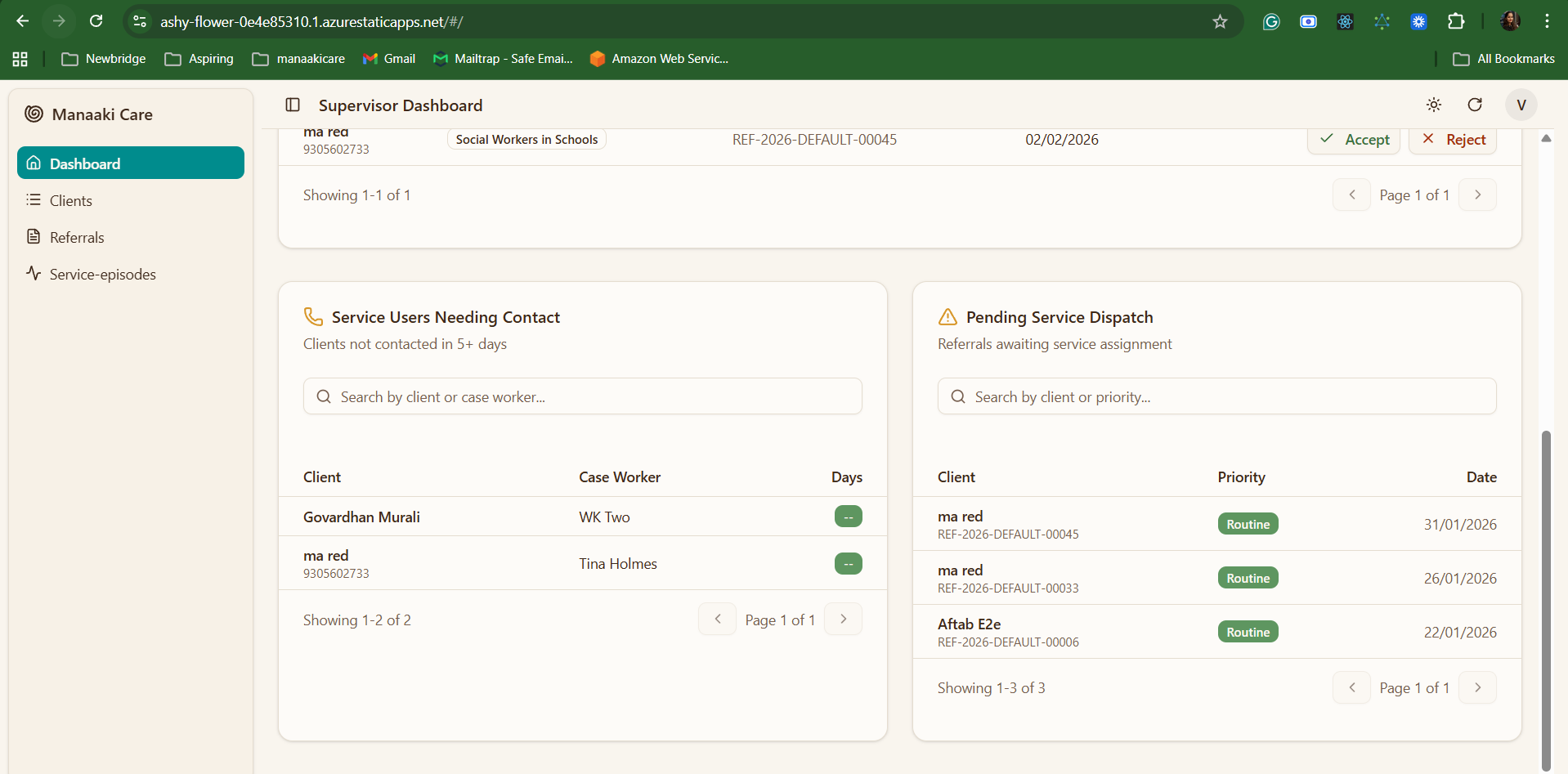
This section (left column) flags Service Users who have not been contacted by their assigned Case Worker in 5 or more days. It helps supervisors ensure Service Users receive timely follow-up.
Section description: "Clients not contacted in 5+ days"
Table Columns
| Column | Description |
|---|---|
| Client | Client name and phone number |
| Case Worker | The Case Worker assigned to this client |
| Days | Number of days since last contact (displayed as a badge) |
Days Badge Colours
| Colour | Condition | Meaning |
|---|---|---|
| Red | More than 7 days | Overdue - requires immediate follow-up |
| Grey | 5-7 days | Approaching overdue - monitor closely |
| -- | No contact recorded | No contact history available |
How Contact Is Tracked
The system tracks the most recent Activity where:
- The Activity outcome is marked as completed
- The Activity type is a telehealth session or in-person visit
What You Can Do
- Review Service Users flagged for follow-up
- Search by client name or Case Worker name
- Follow up with Case Workers who have overdue contacts
- Ensure no Service User falls through the cracks
Check this section daily to ensure your team maintains regular contact with all Service Users. Early intervention prevents disengagement.
Pending Service Dispatch
This section (right column) shows Referrals where the service request has been accepted by a supervisor/manager but no Case Worker has been assigned yet. A Service Episode has been created, but it still needs a Case Worker allocated to begin service delivery.
Section description: "Referrals awaiting service assignment"
Why Referrals Appear Here
A Referral appears in this section when:
- The service request was accepted by a supervisor/manager
- No Case Worker was selected during the acceptance step (the "Allocate to Team Member" field was left empty)
- The Service Episode exists but has no staff assigned
Table Columns
| Column | Description |
|---|---|
| Client | Client name and Referral reference number |
| Priority | Priority level badge |
| Date | Referral date |
Priority Badges
| Badge | Colour | Meaning |
|---|---|---|
| Routine | Green | Standard processing timeline |
| Priority | Amber/Orange | Requires prompt attention |
| Urgent | Orange | Requires immediate action |
| Critical | Red | Crisis situation - highest urgency |
Search
Use the search bar to filter by client name or priority level.
What You Can Do
- Identify accepted Referrals that still need a Case Worker assigned
- Prioritise urgent and critical Referrals for faster allocation
- Assign a Case Worker to the Service Episode to begin service delivery
- Track any Referrals that have been waiting too long without staff assignment
Common Tasks
Searching Within Sections
Each section includes its own search bar:
| Section | Search Placeholder | Searchable Fields |
|---|---|---|
| Pending Referrals Requests | "Search by client or service..." | Client name, service name |
| Service Users Needing Contact | "Search by client or Case Worker..." | Client name, Case Worker name |
| Pending Service Dispatch | "Search by client or priority..." | Client name, priority level |
Pagination
When there are many records, pagination controls appear at the bottom of each section:
| Element | Description |
|---|---|
| Showing X-Y of Z | Indicates which records are currently displayed |
| Page X of Y | Current page number and total pages |
| < > arrows | Navigate to previous/next page |
Refreshing Data
Click the refresh icon (circular arrow) in the top-right header to reload all dashboard data.
Switching Themes
Click the sun/moon icon in the top-right header to toggle between light and dark modes.
Referral Request Workflow
Status Flow for Service Requests
Pending → Accepted → Service Episode Created → Case Worker Assigned → Service Delivery
         → Rejected (with reason)
What Happens on Accept
- Service request status changes to Accepted
- A Service Episode is created for the client under the requested service
- If a team member is allocated:
- The Case Worker is assigned to the service episode
- A "Referral and Service Enrolment" Activity is auto-created within the episode containing:
- Referral summary and reference number
- Service name and details
- Staff assignment information
- Any notes provided by the supervisor
- The Case Worker sees this episode on their dashboard immediately
- The Referral progresses to active service delivery
What Happens on Reject
- Service request status changes to Rejected with the reason recorded
- The Referral status reverts to Pending Service Dispatch
- The Referral goes back to the dispatch queue where a new service can be selected
- A new service request must be created before the Referral can be sent to a supervisor again
Data Visibility
Supervisors and Program Managers have different data scopes:
| Role | Data Scope |
|---|---|
| Supervisor | Own records + supervised Case Workers' records |
| Program Manager | All records within their organisation |
| Admin | All records within their organisation |
Tips for Efficient Work
Daily Routine
-
Start of Day
- Check the Pending Requests card for new Referral requests
- Review the Service Users Needing Contact section
- Accept/reject pending Referral requests
-
Throughout the Day
- Allocate accepted Referrals to team members
- Monitor pending service dispatches
- Follow up on overdue Service User contacts
-
End of Day
- Review any remaining pending requests
- Check Activities / Service Episodes ratio for team engagement
- Note any Service Users approaching the 7-day contact threshold
Priority Management
| Priority | Expected Response | Action |
|---|---|---|
| Critical | Immediate | Accept and allocate immediately |
| Urgent | Same day | Process as soon as possible |
| Priority | Within 24 hours | Process promptly |
| Routine | Within 48 hours | Process in order received |
Keyboard Shortcuts
| Shortcut | Action |
|---|---|
Ctrl + F | Open search |
Enter | Submit search |
Esc | Close dialogs |
Troubleshooting
Dashboard Not Loading
- Check your internet connection
- Click the refresh button
- Try logging out and back in
- Clear your browser cache
No Pending Requests Showing
- This is normal if all requests have been processed
- The green checkmark message confirms there are no pending items
- New requests will appear automatically when submitted
Data Not Updating
- Click the refresh button
- Wait a few moments and try again
- Check if search filters are affecting the view
- Contact support if the issue persists
Related Documentation
- Supervisor Role - Role overview and responsibilities
- Program Manager Role - Role overview and responsibilities
- Intake Officer Dashboard - Intake officer's dashboard view
- Referral Overview - Understanding the Referral process
- Searching for Clients - Finding client records