Intake Officer Dashboard
The Intake Officer Dashboard is your central hub for managing the Referral intake process. It provides a comprehensive view of all Referrals at different stages, from new submissions through to service dispatch.
Overview
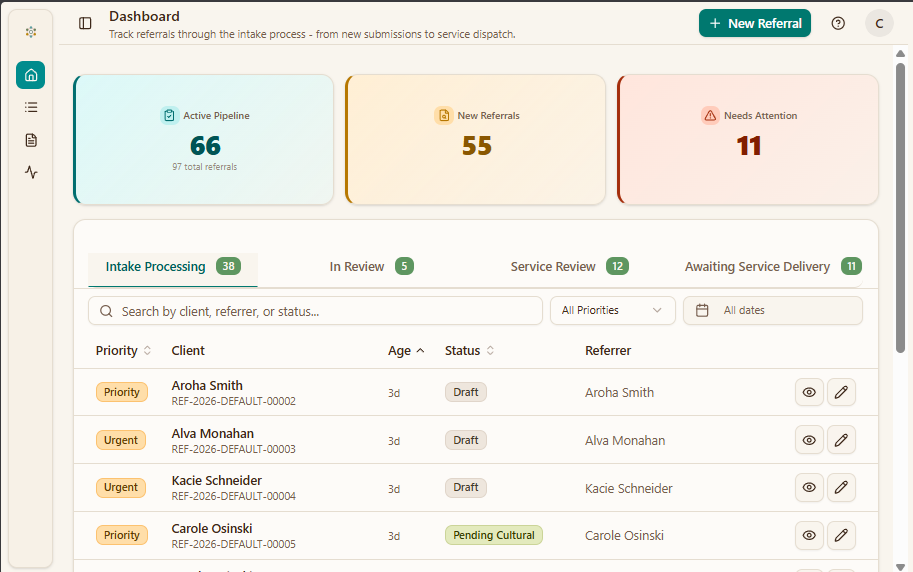
The Intake Dashboard displays:
- Real-time analytics cards showing active pipeline, new Referrals, and items needing attention
- Tab-based navigation to view Referrals at each stage of the intake process
- Inline filters for priority and date
- Quick actions to view and edit Referrals
- Search functionality to find specific Referrals
- + New Referral button to create Referrals directly from the dashboard
Analytics Cards
The top section of the dashboard displays three key metric cards that give you an at-a-glance view of your workload.
Statistics Cards
| Card | Description | What It Shows |
|---|---|---|
| Active Pipeline | All active Referrals across every stage | Sum of Referrals in Intake Processing + In Review + Service Review + Awaiting Service Delivery. A secondary label shows the total Referral count in the system. |
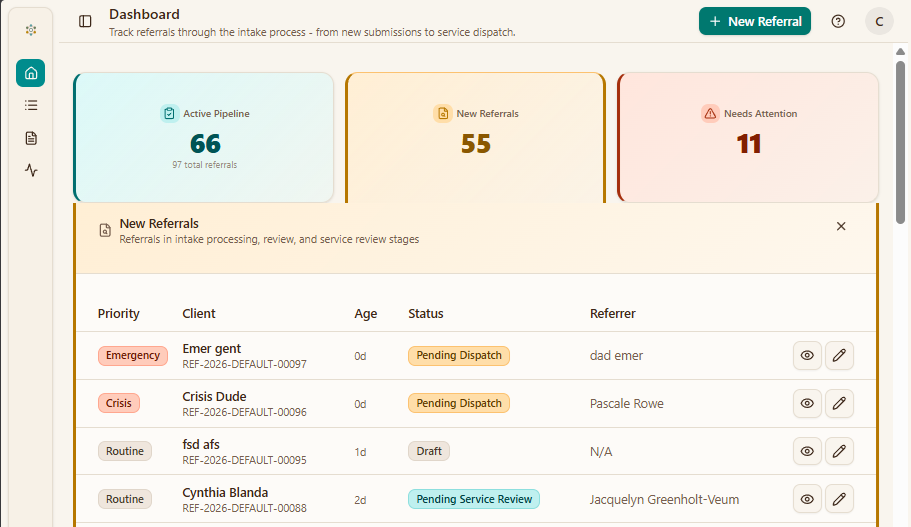
| New Referrals | Referrals not yet dispatched to a service | Sum of Referrals in Intake Processing + In Review + Service Review (8 statuses). Clicking opens an expanded panel listing all of these Referrals. |
| Needs Attention | High-priority Referrals needing immediate action | Count of Referrals with Urgent, Crisis, or Emergency priority, filtered to Intake Processing and In Review stages only. Clicking opens a panel sorted by priority rank (Emergency first). |
Numbers update in real-time as Referrals progress through the workflow. Clicking any card opens an expanded panel — for example, clicking New Referrals shows all pre-dispatch Referrals in one list:
Tab Navigation
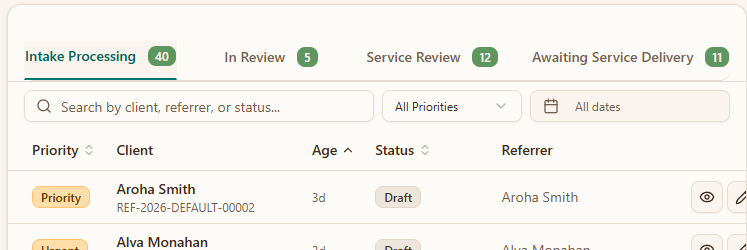
The dashboard uses tabs to organise Referrals by their current stage. Each tab displays a count badge showing the number of Referrals in that stage.
| Tab | Description | Badge |
|---|---|---|
| Intake Processing | New Referrals requiring initial processing | Shows count of Referrals in intake |
| In Review | Referrals submitted and awaiting review | Shows count pending review |
| Service Review | Approved Referrals ready for service allocation | Shows count pending service review |
| Awaiting Service Delivery | Dispatched Referrals waiting for service to begin | Shows count awaiting delivery |
Click any tab to switch the table view to show Referrals at that stage.
Filters
Use the inline filters to narrow down your view:
| Filter | Options | Use Case |
|---|---|---|
| Search | Free text search by client, referrer, or status | Find specific Referrals quickly |
| Priority | All Priorities, Emergency, Crisis, Urgent, Priority, Routine | Focus on high-priority Referrals |
| Referral Date | All dates, Custom date range | View Referrals from specific time periods |
How to Use Filters
- Type in the search bar to filter by client name, referrer, or status
- Click the Priority dropdown to select a priority level
- Click the date field to open the date picker and select a date range
- The table updates automatically to show filtered results
Table Columns
All tabs share a consistent table layout with the following columns:
| Column | Description |
|---|---|
| Priority | Priority level badge (Emergency, Crisis, Urgent, Priority, or Routine) |
| Client | Client name and reference number (e.g., REF-2026-DEFAULT-00002) |
| Age | How long since the Referral was created (e.g., 0d, 1d, 3d) |
| Status | Current status of the Referral |
| Referrer | The person or organisation who made the Referral |
| Actions | View (eye icon) and Edit (pencil icon) buttons |
Priority Badges
| Badge | Meaning |
|---|---|
| Emergency | Requires immediate emergency response |
| Crisis | Crisis situation, handle urgently |
| Urgent | Requires immediate attention |
| Priority | High priority, process promptly |
| Routine | Standard priority |
Action Icons
| Icon | Action | Description |
|---|---|---|
| 👁 Eye | View | Open the Referral details in read-only mode |
| ✏ Pencil | Edit | Open the Referral for editing |
Intake Processing Tab
This is the default tab showing all Referrals that are new or in the initial intake processing stage.
What You'll See
Referrals with the following statuses:
- Draft — Referral has been started but not yet submitted
- Pending Consent — Awaiting client consent before proceeding
- Pending Contact — Awaiting associated contact information
- Pending Assessment — Awaiting assessment completion
- Pending Cultural — Pending cultural and socioeconomic review
How to Process New Referrals
- Review the list - check priority levels and age
- Process Emergency and Crisis items first
- Click the eye icon to view a Referral, or the pencil icon to edit
- Complete the intake assessment
- Submit for review when ready
Each Referral has a unique reference number (e.g., REF-2026-DEFAULT-00047) that you can use to track and search for Referrals.
In Review Tab
This tab shows Referrals that have been submitted and are awaiting review by a supervisor or manager.
What You'll See
Referrals with status:
- Pending Review - Submitted Referrals awaiting approval
A supervisor or manager must approve before the Referral can proceed to service dispatch.
Use the Age column to monitor how long Referrals have been pending. If items stay in "Pending Review" for too long, follow up with your supervisor.
Service Review Tab
This tab displays Referrals that have been approved and are ready to be allocated to services.
What You'll See
Referrals with the following statuses:
- Pending Service Dispatch — Approved Referrals ready to be dispatched to a service
- Pending Service Review — Referrals awaiting service allocation review
How to Dispatch a Referral
- Click the eye icon on a Referral to view details
- Review the client's needs and service requirements
- Select the appropriate service
- Assign to a Case Worker or team
- Confirm the dispatch
Awaiting Service Delivery Tab
This tab shows Referrals that have been dispatched to services and are in various stages of service delivery.
What You'll See
Referrals with the following statuses:
- Pending Allocation — Accepted by a service, awaiting worker allocation
- Awaiting Service — Allocated to a worker, service has not started yet
- Active — Service delivery is in progress
- Completed — Service delivery has been completed
- Cancelled — Referral was cancelled
- On Hold — Referral is temporarily paused
- Closed — Referral has been permanently closed
Status Filter Dropdown
This tab includes an additional status filter dropdown that lets you narrow the list to a specific post-dispatch status (any of the statuses listed above, or "All Statuses").
Monitoring Post-Dispatch Referrals
- Track Referrals that are awaiting service start using the Age column
- Use the status filter dropdown to focus on a specific stage
- Follow up on delayed service initiations
- Review completed Referrals for closure
Creating a New Referral
Click the + New Referral button in the top-right corner of the dashboard. See Creating a Referral for a step-by-step guide.
Expanded Card Panels
Clicking any analytics card opens an expanded panel below it. Click the X button to close.
- Active Pipeline — Shows all Referrals across every tab.
- New Referrals — Combines Referrals from the Intake Processing, In Review, and Service Review tabs into one list.
- Needs Attention — Shows only Intake Processing and In Review Referrals, filtered to Urgent/Crisis/Emergency priority and sorted with Emergency first.
Common Tasks
Pagination
When there are many Referrals, use pagination to navigate:
- Showing X-Y of Z - Indicates which records are displayed
- Page X of Y - Current page number
- < > arrows - Navigate between pages
Refreshing Data
To refresh the dashboard data:
- Click the refresh icon (circular arrow) in the top-right corner
- The dashboard reloads with the latest data
Switching Themes
Click the sun/moon icon in the top-right corner to toggle between light and dark modes.
Workflow and Status Reference
For the complete Referral lifecycle diagram, all 15 status definitions, and role responsibilities, see the Workflow Overview.
For priority handling guidelines and expected response times, see Priority Handling.
Troubleshooting
Dashboard Not Loading
- Check your internet connection
- Click the refresh button
- Try logging out and back in
- Clear your browser cache
Missing Referrals
If you can't find a Referral:
- Check all tabs (it may have moved to a different status)
- Use the search function with the reference number
- Check the filters - you may have a filter active
- Go to the full Referrals page for advanced search
Data Not Updating
- Click the refresh button
- Check if filters are affecting the view
- Wait a few moments and try again
- Contact support if the issue persists
Related Documentation
- Workflow Overview - Referral lifecycle, status definitions, and daily workflows
- Intake Officer Role - Role overview, permissions, and best practices
- Creating a Referral - Step-by-step guide
- Referral Overview - Understanding the Referral process
- Submitting for Review - How to submit Referrals
- Searching for Clients - Finding client records