Case Worker Dashboard
The Case Worker Dashboard — titled "My Caseload" — is your personal hub for managing assigned Service Episodes and tracking activities that need follow-up. It gives you a focused view of your own workload.
Overview
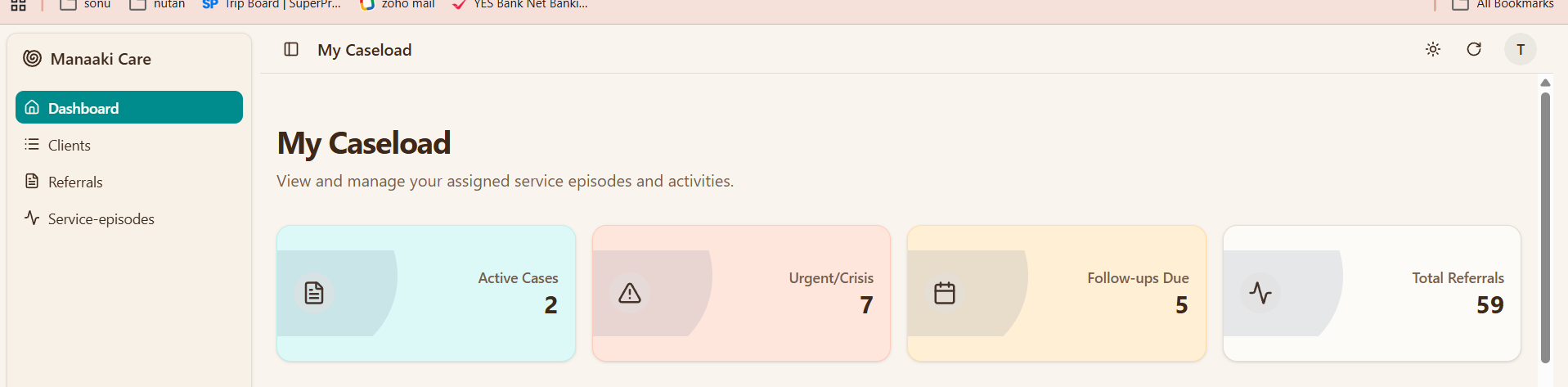
The dashboard displays:
- Real-time metrics showing your active Cases, urgent items, follow-ups, and Referral counts
- My Active Cases table of all service episodes assigned to you
- Activities Needing Follow-up table of scheduled follow-ups sorted by date and priority
The dashboard description reads: "View and manage your assigned Service Episodes and Activities."
Analytics Section
The top section displays four metric cards summarising your current workload.
Statistics Cards
| Card | Icon | Description | Highlight Colour |
|---|---|---|---|
| Active Service Episodes | Document | Number of active service episodes assigned to you | Blue when you have active cases |
| Urgent/Crisis | Warning triangle | Combined count of urgent, crisis, and emergency priority Referrals | Orange when count is greater than 0 |
| Follow-ups Due | Calendar | Number of activities with scheduled follow-up dates | Yellow when follow-ups are pending |
| Total Referrals | Activity | Total number of Referrals across all priority levels | Default (no highlight) |
Understanding the Numbers
- Active Service Episodes reflects your current service episode assignments
- Urgent/Crisis sums up urgent + crisis + emergency priority Referrals — check these first
- Follow-ups Due counts activities where you have set a follow-up date that still needs action
- Total Referrals shows your overall Referral volume across all priorities (routine, priority, urgent, crisis, emergency)
My Active Cases
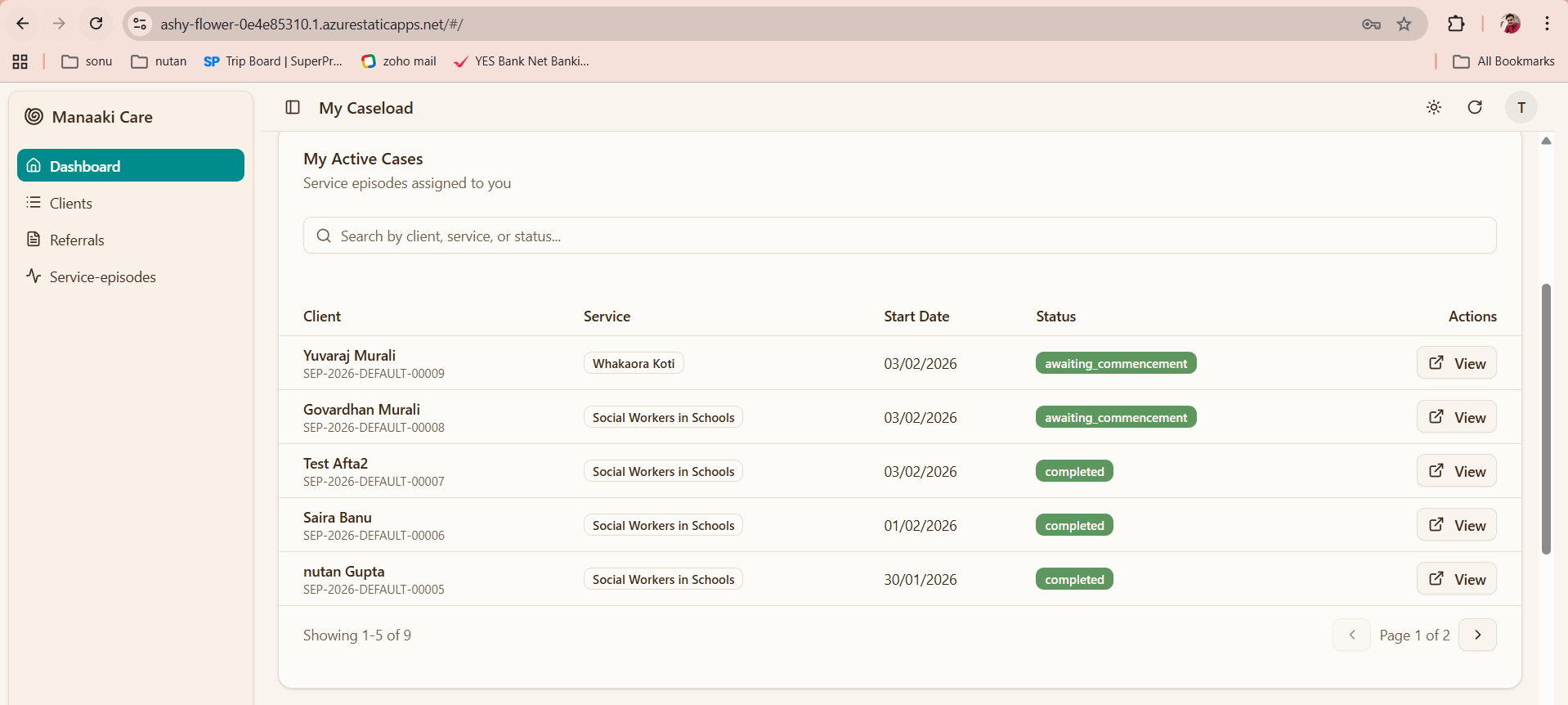
This section lists all service episodes currently assigned to you.
Section description: "Service Episodes assigned to you"
Table Columns
| Column | Description |
|---|---|
| Client | Client name and service episode reference number (e.g., SEP-2026-DEFAULT-00009) |
| Service | The service being delivered (displayed as a badge, e.g., "Whakaora Koti", "Social Workers in Schools") |
| Start Date | When the service episode started |
| Status | Current status of the episode |
| Actions | View button to open the service episode details |
Status Badges
| Status | Colour | Meaning |
|---|---|---|
| awaiting_commencement | Grey | Episode created but service delivery hasn't started yet |
| active | Primary (dark) | Service delivery is in progress |
| completed | Green | Service delivery has been completed |
| closed | Outline | Episode has been closed |
Actions
- View — Click to open the full service episode detail page where you can manage the episode, record activities, and view client information
Search
Use the search bar to filter by client name, service name, or status.
- Type your search term and results filter automatically
- The search placeholder reads: "Search by client, service, or status..."
Pagination
When you have more than 5 episodes, pagination appears at the bottom:
| Element | Description |
|---|---|
| Showing X-Y of Z | Which records are currently displayed |
| Page X of Y | Current page and total pages |
| < > arrows | Navigate between pages |
Empty State
When you have no active cases, you will see a green checkmark with the message: "No active cases assigned to you."
Activities Needing Follow-up
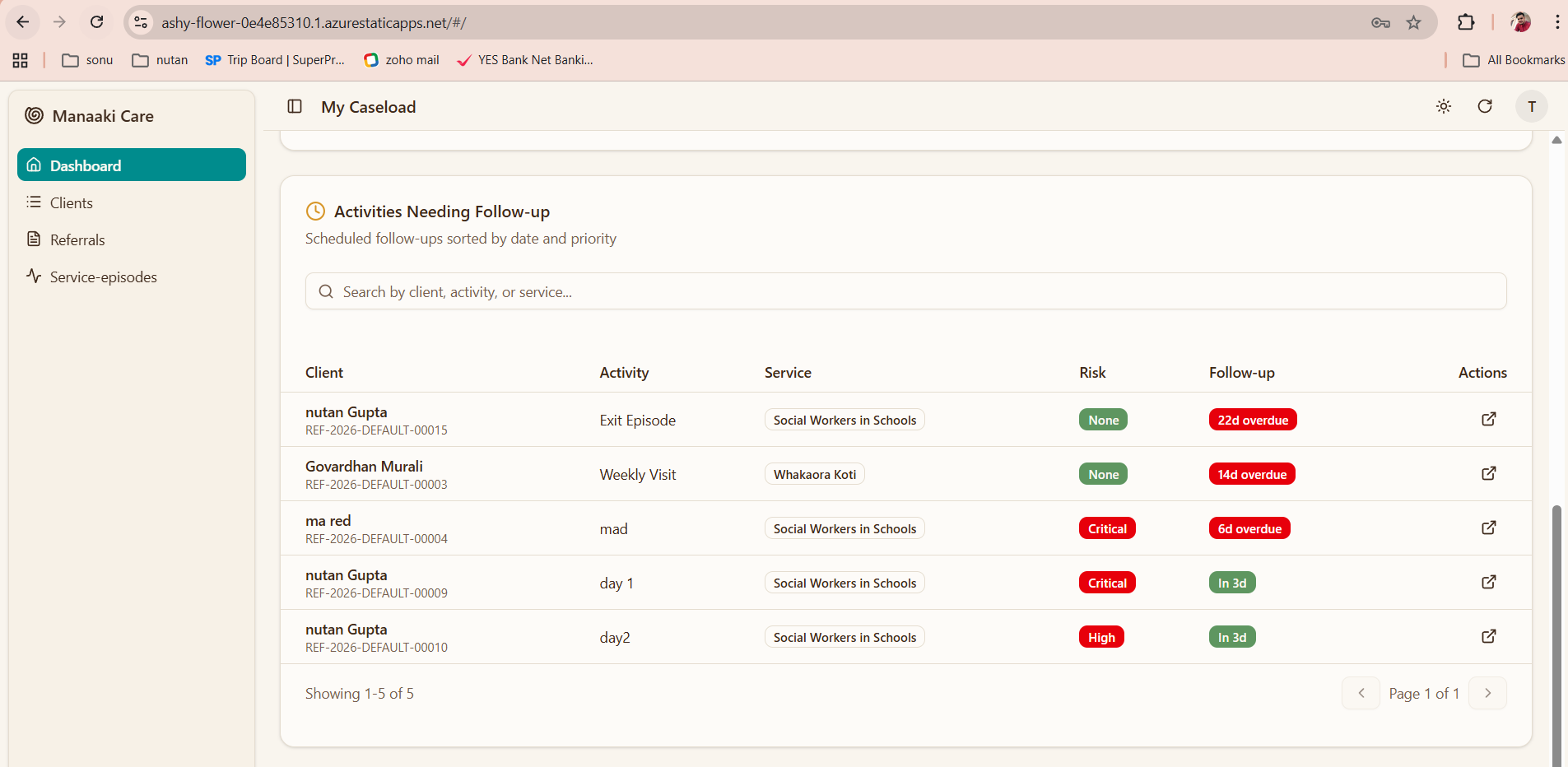
This section shows all your activities that have a scheduled follow-up date, sorted by date and priority. It helps you stay on top of upcoming and overdue follow-ups.
Section description: "Scheduled follow-ups sorted by date and priority"
Table Columns
| Column | Description |
|---|---|
| Client | Client name and Referral reference number (e.g., REF-2026-DEFAULT-00015) |
| Activity | Title of the activity (e.g., "Exit Episode", "Weekly Visit", "day 1") |
| Service | The service name (displayed as a badge) |
| Risk | Risk level badge for the activity |
| Follow-up | Days until follow-up or days overdue |
| Actions | Link icon to open the activity detail page |
Risk Badges
| Risk Level | Colour | Meaning |
|---|---|---|
| Critical | Red | Highest risk — requires immediate attention |
| High | Red | High risk — prioritise this activity |
| Medium | Primary (dark) | Moderate risk — monitor closely |
| None / other | Grey | No specific risk identified |
Follow-up Badges
The Follow-up column dynamically shows how urgent the follow-up is:
| Badge | Colour | Meaning |
|---|---|---|
| Xd overdue | Red | Follow-up date has passed (e.g., "22d overdue", "6d overdue") |
| Today | Primary (dark) | Follow-up is due today |
| In Xd | Primary (dark) | Follow-up is due within 2 days (e.g., "In 1d") |
| In Xd | Grey | Follow-up is due in 3+ days (e.g., "In 3d") |
Red "overdue" badges indicate follow-ups that are past due. Address these first to ensure no client is left without timely support.
Actions
Click the link icon on any row to navigate directly to the activity detail page within its service episode.
Search
Use the search bar to filter by client name, activity title, or service name.
- The search placeholder reads: "Search by client, activity, or service..."
Pagination
Same pagination pattern as My Active Cases — 5 items per page with page navigation.
Empty State
When you have no follow-ups scheduled, you will see a green checkmark with the message: "No follow-ups scheduled"
Common Tasks
Searching Within Sections
Each section has its own search bar:
| Section | Search Placeholder | Searchable Fields |
|---|---|---|
| My Active Cases | "Search by client, service, or status..." | Client name, service name, status |
| Activities Needing Follow-up | "Search by client, activity, or service..." | Client name, activity title, service name |
Refreshing Data
Click the refresh icon (circular arrow) in the top-right header to reload all dashboard data.
Switching Themes
Click the sun/moon icon in the top-right header to toggle between light and dark modes.
Navigating to a Service Episode
- Find the episode in the My Active Cases table
- Click the View button
- You will be taken to the full service episode page
Navigating to an Activity
- Find the activity in the Activities Needing Follow-up table
- Click the link icon in the Actions column
- You will be taken to the activity detail page within its service episode
Data Visibility
As a Case Worker, you can only see data assigned to you:
| Data Type | Scope |
|---|---|
| Service Episodes | Only episodes where you are assigned as staff |
| Activities | Only activities within your assigned episodes |
| Referral counts | Only Referrals linked to your assignments |
Your supervisor can see all your records plus records of other Case Workers they supervise.
Tips for Efficient Work
Daily Routine
-
Start of Day
- Check the Urgent/Crisis card for high-priority items
- Review Follow-ups Due for any overdue follow-ups (red badges)
- Scan My Active Cases for episodes awaiting commencement
-
Throughout the Day
- Record activities after each client interaction
- Set follow-up dates on activities that need future action
- Update service episode status as services progress
-
End of Day
- Review upcoming follow-ups for tomorrow
- Ensure all client interactions have been recorded
- Check for any newly assigned episodes
Priority Management
| Priority | Expected Action |
|---|---|
| Overdue follow-ups (red) | Address immediately |
| Urgent/Crisis Referrals | Process same day |
| Follow-ups due today or within 2 days | Schedule into today's work |
| Awaiting commencement episodes | Plan service start |
| Routine follow-ups | Process in order |
Keyboard Shortcuts
| Shortcut | Action |
|---|---|
Ctrl + F | Open search |
Enter | Submit search |
Esc | Close dialogs |
Troubleshooting
Dashboard Not Loading
- Check your internet connection
- Click the refresh button
- Try logging out and back in
- Clear your browser cache
Missing Service Episodes
If you cannot find an assigned episode:
- Check all pages using pagination
- Use the search bar with the client name or reference number
- The episode may have been closed or reassigned — check with your supervisor
Follow-up Dates Not Showing
Activities only appear in the follow-up section if:
- The activity has the follow-up required flag set
- A follow-up date has been entered
- The activity belongs to your assigned service episodes
Data Not Updating
- Click the refresh button
- Wait a few moments and try again
- Check if search filters are narrowing your view
- Contact support if the issue persists
Related Documentation
- Case Worker Role - Role overview and responsibilities
- Managing Service Episodes - How to manage your episodes
- Recording Visits - How to record client visits
- Case Notes - How to write case notes
- Supervisor / Program Manager Dashboard - Your supervisor's view